Welcome to SolutionTech24
Total Pageviews
Tuesday, May 19, 2015
Sunday, May 17, 2015
Nokia e5/e6/e63/e71 youtube error could not connect Solution
To make youtube working we need to copy previously running
personal settings,for your convenience i am providing you the personal
settings from below
1. uninstall youtube (which installed your phone)
2. download file 2000FBBA.zip from attachment
3.install new youtube from official site from your default web browser
4. After downloading Install youtube to memory card.
5. Using USB or any other connector, connect memory to computer, and go to folder private and there you will see folder 2000FBBA. Replace all the contents inside 2000FBBA with your downloaded 2000FBBA.
2000FBBA Downlink link. After Download make it to extract.
1. uninstall youtube (which installed your phone)
2. download file 2000FBBA.zip from attachment
3.install new youtube from official site from your default web browser
4. After downloading Install youtube to memory card.
5. Using USB or any other connector, connect memory to computer, and go to folder private and there you will see folder 2000FBBA. Replace all the contents inside 2000FBBA with your downloaded 2000FBBA.
2000FBBA Downlink link. After Download make it to extract.
Saturday, March 28, 2015
CPU Air Cooling system & Liquid Cooling system
Cooling: Over the past
few years, CPU speeds have been increasing at a dramatic rate. In order to
generate the new speeds, CPUs have more transistors, are drawing more power and
have higher clock rates. This leads to greater heat produced by the CPU in the
computer. Every computer has a cooling fan inside the case, designed
primarily to prevent the CPU from overheating. Cooling fans may bring cool air
into the computer, draw hot air out of the computer, or as part of a heat sink,
which is a special product designed to draw heat away from a particular
computer component.
Air Cooling: Air-cooling
with fans is one of the most widely practiced ways of dissipating heat in
computers. Fans are not only easy to install and maintain, but are also an
effective way to remove heat from components and bring in cooler air, thus
maintaining a constant optimal temperature for operation. A heat sink is a
device that is thermally bonded to a computer component like a CPU. A fan moves
air across the heat sink, which allows the heat sink to absorb heat from the
CPU, and all of this heat is eventually blown out the computer’s exhaust vent.
You can generally buy a CPU cooling fan with or without a heat sink.
Liquid Cooling:
Liquid cooling is essentially a radiator for the CPU inside of the computer.
Just like a radiator for a car, a liquid cooling system circulates a liquid
through a heat sink attached to the processor inside of the computer. As the
liquid passes through the heat sink, heat is transferred from the hot processor
to the cooler liquid. The hot liquid then moves out to a radiator at the back
of the case and transfers the heat to the ambient air outside of the case. The
cooled liquid then travels back through the system to the CPU to continue the
process.
(VIDEO) Installing Corsair Liquid Cooler System
Thursday, March 26, 2015
What is the Difference Between HDD & SSD
A solid state drive or SSD can speed up the performance of a computer significantly, often more than what a faster processor (CPU) can. A hard disk drive or HDD is cheaper and offers more storage (500 GB to 1 TB are common) while
SSD disks are more expensive and generally available in 64 GB to 256 GB
configurations.
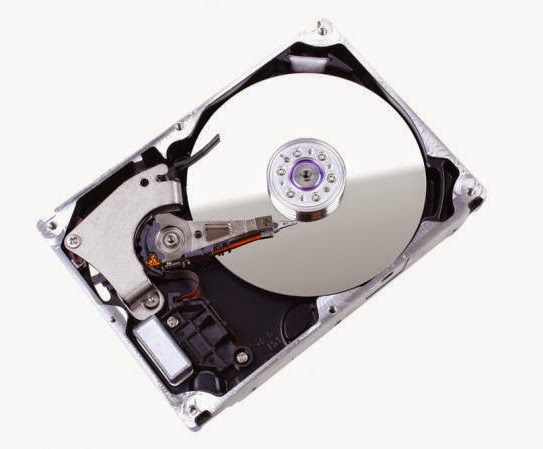
HDD: The traditional spinning hard Disc drive (HDD) is the basic nonvolatile
storage on a computer. That is, it doesn't "go away" like the data on
the system memory when you turn the system off. Hard drives are
essentially metal platters with a magnetic coating. That coating stores
your data, whether that data consists of weather reports from the last
century, a high-definition copy of the Star Wars trilogy, or
your digital music collection. A read/write head on an arm accesses the
data while the platters are spinning in a hard drive enclosure.
SSD: An SSD (Solid State Drive) does much the same job functionally (e.g., saving your data while
the system is off, booting your system, etc.) as an HDD, but instead of
a magnetic coating on top of platters, the data is stored on
interconnected flash memory chips that retain the data even when there's
no power present. The chips can either be permanently installed on the
system's motherboard (like on some small laptops and ultrabooks), on a
PCI/PCIe card (in some high-end workstations), or in a box that's sized,
shaped, and wired to slot in for a laptop or desktop's hard drive
(common on everything else). These flash memory chips differ from the
flash memory in USB thumb drives in the type and speed of the memory.
That's the subject of a totally separate technical treatise, but suffice
it to say that the flash memory in SSDs is faster and more reliable
than the flash memory in USB thumb drives. SSDs are consequently more
expensive than USB thumb drives for the same capacities
Wednesday, March 18, 2015
Windows7 Home Premium, Windows7 Professional ও Windows7 Ultimate এর মধ্যে বিশেষ পার্থক্য
সাধারণত আমরা জানি যে, windows7 এর মোট ছয়টি পার্থক্যশীল ভার্সন আমাদের মাঝে প্রচলিত রয়েছে যা হল:- windows7 Starter, windows7 Home Basic, windows7 Home Premium, windows7 Enterprise windows7 Professional, windows7 Ultimate তন্মধ্যে windows7 Starter ও windows7 Home Basic এ সবধরনের প্রয়োজনীয় ফিচার না থাকায় এর তেমন একটা ব্যবহার না হলেও বাকি ভার্সনগুলো আমরা সবাই কোন না কোন ক্ষেত্রে ব্যবহার করে থাকি।
এবার দেখা যাক পার্থক্য মতে Home Premium ভার্সনটি ডিজাইন করা হয়েছে বিশেষ করে হোম ইউজারদের জন্য, আর Professional ভার্সনটি তৈরি করা হয়েছে যারা প্রফেশনালি কাজ করেন তাদের জন্য এই ভার্সনটিতে আপনি Windows এর সকল Advance Feather যেমন Remote Desktop, Location wise Printing, Domain Join, Group Policy contriol, Remote Desktop Host, Advance Backup ইত্যাদি সুবিধা পাবেন, আর Windows7 Ultimate ভার্সন এ ব্যবহারকারিরা Windows7 এ বিদ্যমান সবধরনের ফিচারসহ Bit Locker, Bit Locker to go, App Locker, Direct Access, BranchCache and MUI Language Pack ইত্যাদি বিদ্যমান।
Monday, March 16, 2015
The installed battery may not be properly connected to the computer on sony Vaio Laptop
Follow these steps to fix this problem.
- Power off the notebook and remove the battery.
- Make sure only the AC adapter is connected and power on the notebook.
- Click the Start button, click All Programs , click Accessories , and then click Run .
- In the Run window, type MSCONFIG and then press the Enter key.
- In the System Configuration window, click the Startup tab.
- On the Startup tab, click to uncheck the box in front of ISB Utility .
- Click the OK button.
- In the System Configuration window, click the Restart button.
- Power off the notebook, reconnect the battery and power back on.
Saturday, March 7, 2015
How to Cancel late Print or Hang Print Job in Windows
- Browse to Start -> Run… and type in “NET STOP SPOOLER” (this will stop the print spooler service)
- Browse to your windows\system32\spool\PRINTERS\ folder
- You should see files there ending in .SPL and .SHD created around the time you tried to print – delete these files.
- Browse to Start -> Run… and type in “NET START SPOOLER” (this will restart the print spooler service)
- Then Print Again
Subscribe to:
Posts (Atom)


